Claude Code Setup Guide
A beginner-friendly macOS / Windows guide. It covers Claude Code CLI, IDE terminal usage and the standalone Claude desktop client gateway.
RECOMMENDED · 30 SECONDS
One-command install. Do step 2 first to create your Claude-Key, then run this single command and paste the key when prompted. It installs Claude Code and writes the environment variables automatically. If Claude Code is already installed, it skips tool installation and only configures the environment; re-running is safe.
# macOS / Linux
curl -fsSL https://dolinx.com/install.sh | bash -s

# Windows PowerShell
irm https://dolinx.com/install.ps1 | iex
See the Setup Center for what the script does, or keep reading for the manual walkthrough.
What is a terminal?
A terminal, command line or PowerShell is a small window where you type commands. For this guide, you only need copy, paste and Enter.
macOS: press Command + Space, type Terminal and press Enter. Windows: open the Start menu, search PowerShell and open Windows PowerShell.
1. Install Claude Code
Claude Code is Anthropic's command-line coding tool. Paste the command for your system into the terminal.
macOS / Linux
curl -fsSL https://claude.ai/install.sh | bashWindows PowerShell
irm https://claude.ai/install.ps1 | iexAfter installation, close the terminal, open a new one and run claude --version.
2. Get your dolinx API key
- Open the dolinx console and sign in.
- Go to API Keys and create a new key.
- Copy the key that starts with
sk-.
sk- key is a credential. Keep it private.3. Set environment variables for Claude Code CLI
| Variable | Value |
|---|---|
ANTHROPIC_BASE_URL | https://api.dolinx.com |
ANTHROPIC_AUTH_TOKEN | Your sk- API key |
macOS / Linux
# Temporary, current terminal only
export ANTHROPIC_BASE_URL=https://api.dolinx.com
export ANTHROPIC_AUTH_TOKEN=sk-***

# Permanent for zsh
echo 'export ANTHROPIC_BASE_URL=https://api.dolinx.com' >> ~/.zshrc
echo 'export ANTHROPIC_AUTH_TOKEN=sk-***' >> ~/.zshrc
source ~/.zshrc
Windows PowerShell
# Temporary, current window only
$env:ANTHROPIC_BASE_URL = "https://api.dolinx.com"
$env:ANTHROPIC_AUTH_TOKEN = "sk-***"

# Permanent, reopen terminal afterwards
setx ANTHROPIC_BASE_URL "https://api.dolinx.com"
setx ANTHROPIC_AUTH_TOKEN "sk-***"
4. Start using Claude Code
CLI
cd ~/your-project
claude
Common slash commands include /init, /model, /clear and /status.
IDE terminal
Open your project in VS Code or Cursor, open the integrated terminal and run claude. If the IDE was open before you set the variables, quit it fully and reopen it.
Claude desktop client
This refers to the standalone Claude app from claude.ai/download.
- Enable developer mode:
Help -> Troubleshooting -> Enable Developer Mode. - Open
Developer -> Configure third-party inference. - Set
ConnectiontoGateway. - Fill the gateway credentials below.
| Gateway base URL | https://api.dolinx.com |
|---|---|
| Gateway API key | Your sk- key |
| Gateway auth scheme | bearer |
| Credential kind, if shown | Static API key |
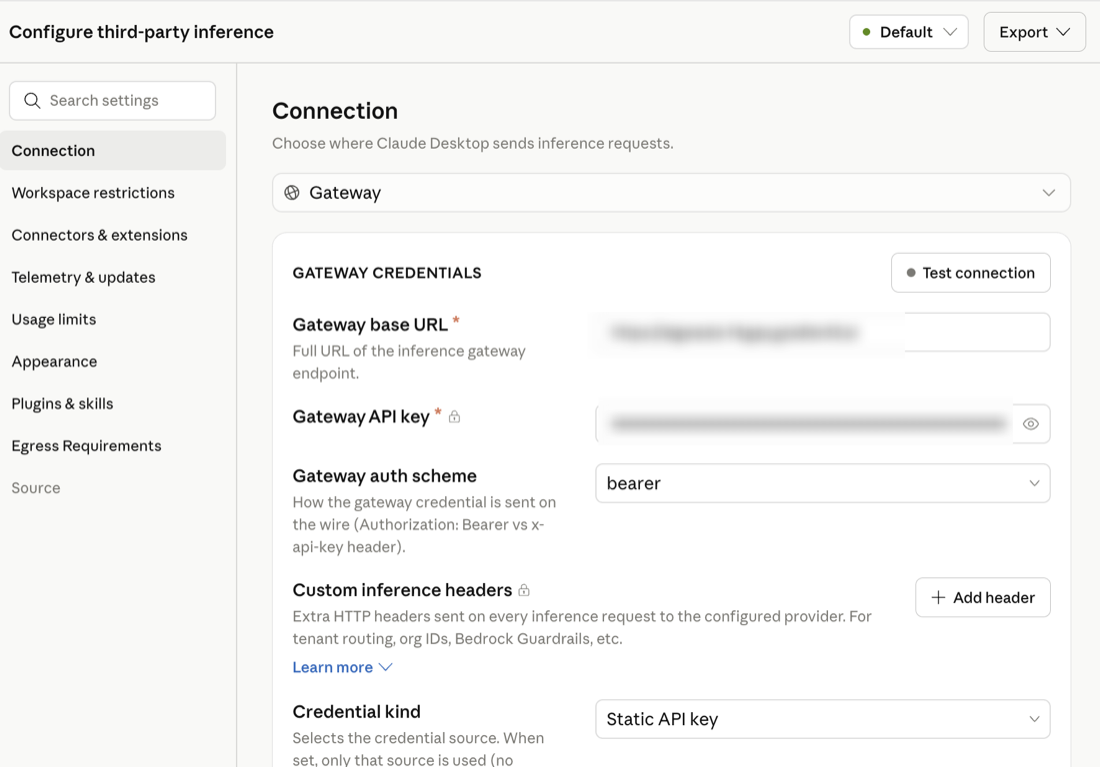
Click Apply locally, let the app restart into third-party gateway mode, then choose Start in Cowork on 3P when prompted.
Troubleshooting
| Symptom | Fix |
|---|---|
command not found: claude | Close the terminal and open a new one. |
| 401 / unauthorized | Check ANTHROPIC_AUTH_TOKEN, your sk- key and extra spaces. |
| Spinning or timeout | Check that ANTHROPIC_BASE_URL is exactly https://api.dolinx.com. |
| Variables do not work in VS Code / Cursor | Quit the IDE fully and reopen it so it reloads environment variables. |
| No Developer menu in Claude app | Enable developer mode from Help -> Troubleshooting, then restart the app. |
| Gateway error in Claude app | Check base URL, API key and auth scheme = bearer. |
ANTHROPIC_BASE_URL and ANTHROPIC_AUTH_TOKEN; Codex uses config.toml and ~/.codex/auth.json.